See a small selection of our work on our website and more albums on our Facebook page

click on the images above to be redirected to our website
Tuesday, February 28, 2012
How to create simple, yet effective animated gifs in Photoshop
Love this tutorial on: how to create animated gifs in Photoshop

Tuesday, February 21, 2012
Unlock and use content from or edit pdf files easily with these easy to follow tutorials
You can edit pdf files easily with these easy to follow tutorials - just click this link:
Unlock and use content from, or edit pdf files
Unlock and use content from, or edit pdf files
Monday, January 30, 2012
If you're building websites for other people and want to add their site to Google. Use this link - it's free and easy:
If you're building websites for other people and want to add their site to Google. Use this link - it's free and easy: https://www.google.com/webmasters/tools/submit-url/.
But, you don't even need to submit a site to Google. Google is a fully automated search engine that uses software known as "spiders" to crawl the web on a regular basis and find sites to add to their index. In fact, the vast majority of sites listed in their results aren't manually submitted for inclusion, but found and added automatically when their spiders crawl the web.
Tuesday, October 18, 2011
Free downloadable texture images
Found this great texture library which has over 4250 free to download, high-resolution textures:
www.mayang.com/textures
www.mayang.com/textures
Thursday, October 06, 2011
Disabling Skype and other softwares quickly on Start Up on a Mac
Thought I'd share this easy tip...
Skype was loading on Start Up on my Mac and I was looking for a way to disable it in Preferences or System Software etc. when I discovered the following that disables applications quickly if you have an unwanted software opening on Start Up...
Simply click and hold the software icon on your dock that is opening up - either along the bottom of your screen or up the side - and just drag up to 'Open at Login' that should untick it and it shouldn't happen again!
Skype was loading on Start Up on my Mac and I was looking for a way to disable it in Preferences or System Software etc. when I discovered the following that disables applications quickly if you have an unwanted software opening on Start Up...
Simply click and hold the software icon on your dock that is opening up - either along the bottom of your screen or up the side - and just drag up to 'Open at Login' that should untick it and it shouldn't happen again!
Thursday, March 31, 2011
Does your business card work? ***Free Business Card design draw!***
A quick glance at the following business card may make you think - 'that's nice' - and on the face of it, yes, it's pretty...
 Front
Front
 Back
Back
...but does it work?
Here is a slight revamp of the above design but one which works better...
 Front
Front
 Back
Back
Edmonds and Hunt Advertising have 30 years experience in knowing what works and what doesn't in corporate identities and can help you with yours.
Please send an email with business card competition in the title and a scan of your current business card to info@edmondsandhunt.co.uk and we will draw a winner on Tuesday 26th April.
If you can't wait to see if you're a winner and would like your corporate identity looked at to see if it needs an update, or you would like a completely new logo and corporate identity designed, or if you would just like a quote for printing, please contact Caroline at Edmonds and Hunt Advertising. Tel/Fax: 01920 487728. Email: info@edmondsandhunt.co.uk and Caroline will be happy to discuss it with you.
 Front
Front Back
Back...but does it work?
- Is it legible enough for people to see your contact details?
- Does it explain what you do, whether by image or text?
- Is there space or a light enough area to write on it? Many people will pick up your business card at meetings/exhibitions etc. and may want to write a reminder to themselves on it for when they return to the office.
- Is it glossy or plastic? Not a good idea for writing on if you're giving out at meetings or exhibitions
- Is it an unusual size? Too small - it will get lost and fall out of a clutch of standard size business cards. Too big - it will get damaged and again, lost out of a clutch of standard size business cards as it will sit on it's own somewhere.
Here is a slight revamp of the above design but one which works better...
 Front
Front Back
Back***Prize Draw!***
We are giving one lucky winner one free revamp design of their business card. We will supply you with a pdf of the artwork ready for print (one name only on the pdf - no companies with hundreds of employees please). You can then get it printed yourself or we can print it for you at a reasonable cost - quote to be given when we know quantities the winner will want.Please send an email with business card competition in the title and a scan of your current business card to info@edmondsandhunt.co.uk and we will draw a winner on Tuesday 26th April.
If you can't wait to see if you're a winner and would like your corporate identity looked at to see if it needs an update, or you would like a completely new logo and corporate identity designed, or if you would just like a quote for printing, please contact Caroline at Edmonds and Hunt Advertising. Tel/Fax: 01920 487728. Email: info@edmondsandhunt.co.uk and Caroline will be happy to discuss it with you.
Wednesday, March 30, 2011
The New You Beauty Show
 Edmonds and Hunt Advertising and Houghton Communications are pleased to announce their collaboration as hosts of this exclusive show, combining over two decades of experience of advertising and event management.
Sunday June 19th 2011. 11am - 5pm at The Hertford Theatre, Hertford.
Tickets £4 prior to the event available from www.thenewyoubeautyshow.co.uk, Hertford Theatre Box Office or £5 on the day
A percentage of the profits will be donated to Leukaemia and Lymphoma Research.
The New You Beauty Show is aimed not only at the successful wedding exhibition audience for brides to be to look their best on the day but extending to any member of the public who has an interest in health, beauty and wellbeing. The New You Beauty Show will exhibit high end beauty products and procedures, skincare treatments, relaxation therapies, spa and wellness clinics, health and nutrition, weight management, hair and nails, fitness centres, fashion and accessories and many more ‘Looking Good’ and ‘Feeling Good’ products and services. Visitors will be able to take home a wealth of literature, free samples and invaluable advice. There will be goodie bags, raffles, competitions and plenty more! So come along for an enjoyable day!
The Show will be held in the auditorium of the all new refurbished Hertford Theatre which has a gallery, cafe bar and excellent facilities. There is ample parking in Hertford which is free on Sundays and there are two railway stations within walking distance.
Please see the website for more information: www.thenewyoubeautyshow.co.uk
Exhibitors: 40 stands at £95. Download the exhibitor information pack and booking form
Prize Draw! Exhibitors returning their booking forms with deposit before April 10th will be entered into a draw on the day to get the cost of their stand reimbursed

See links:
Houghton Communications Report
Come and have a 'beautiful' day out!

Friday, March 18, 2011
How to disable image downloading on flickr
Disabling image downloads on flickr makes it harder for people to access your files.
Please be aware that it is not impossible for people to download them but just makes it harder - so is a deterrent only.
On your flickr 'home' page there is a blue tab underneath the flickr logo at the top of the page called 'You'. To the right of this there is a little grey arrow. Click on the grey arrow and scroll down to 'Your Account'. Personal information will be highlighted in pink at the top and next to that there is a tab called 'Privacy & Permissions'.
Click on 'Privacy & Permissions' and the first heading under the pink 'Global Settings' is 'Who can access your original image files?'. Over to the right of this heading is an underlined 'edit'.
Click on 'edit' and highlight the button 'Only You'. Then 'Save' the page.
All done. This now applies to all of your photos in your photostream in Flickr.
Please be aware that it is not impossible for people to download them but just makes it harder - so is a deterrent only.
On your flickr 'home' page there is a blue tab underneath the flickr logo at the top of the page called 'You'. To the right of this there is a little grey arrow. Click on the grey arrow and scroll down to 'Your Account'. Personal information will be highlighted in pink at the top and next to that there is a tab called 'Privacy & Permissions'.
Click on 'Privacy & Permissions' and the first heading under the pink 'Global Settings' is 'Who can access your original image files?'. Over to the right of this heading is an underlined 'edit'.
Click on 'edit' and highlight the button 'Only You'. Then 'Save' the page.
All done. This now applies to all of your photos in your photostream in Flickr.
Monday, March 14, 2011
What are File Extensions or suffixes?
File extensions or 'suffixes' are a very crucial part of the computer world. Without file extensions, some operating systems will have problems in recognizing and organizing files.
File extensions/suffixes are markers which inform us and the computer what source application a specific file is associated with. Mostly, these are combinations or abbreviations designed by the developer of the application which created the file.
You may name a file image1 but it needs a file extension/suffix after it for the computer to recognise the application which the file was created in. These are signified with a dot and a number of digits after it
For example: If it is a Photoshop document the suffix would be image1.psd
If it is a InDesign document, these files are associated with the .indd file extension.
Files can only be opened with applications similar to the one that was used to create the file. However, there are some exemptions. Earlier versions of Microsoft Word applications such as those released prior to the 2007 version are provided with the file extension .doc and Microsoft Word 2007 documents are saved with file extensions .docx which is an extended XML format of word documents. Though developed by the same company and with similar standards, earlier versions of Microsoft Word will not be able to open files with extensions .docx unless provided with the compatibility software. However, backwards compatibility is mostly supported by newer software applications.
Here is a link to a site that gives file associations and related file types:
http://www.sharpened.net/extensions/browse/a
Hope I've explained it right and easily for you!
File extensions/suffixes are markers which inform us and the computer what source application a specific file is associated with. Mostly, these are combinations or abbreviations designed by the developer of the application which created the file.
You may name a file image1 but it needs a file extension/suffix after it for the computer to recognise the application which the file was created in. These are signified with a dot and a number of digits after it
For example: If it is a Photoshop document the suffix would be image1.psd
If it is a InDesign document, these files are associated with the .indd file extension.
Files can only be opened with applications similar to the one that was used to create the file. However, there are some exemptions. Earlier versions of Microsoft Word applications such as those released prior to the 2007 version are provided with the file extension .doc and Microsoft Word 2007 documents are saved with file extensions .docx which is an extended XML format of word documents. Though developed by the same company and with similar standards, earlier versions of Microsoft Word will not be able to open files with extensions .docx unless provided with the compatibility software. However, backwards compatibility is mostly supported by newer software applications.
Here is a link to a site that gives file associations and related file types:
http://www.sharpened.net/extensions/browse/a
Hope I've explained it right and easily for you!
Friday, March 11, 2011
What is a vector image simply described?
• Vector images have infinite resolution meaning no matter how large you expand or how small you make the image, it will always show smooth, clear edges and details.
• The file sizes are usually very small.
• The image remains editable as long as it remains in a vector format.
Here is a link in more detail but I thought I'd just give you 3 of the main definitions above for quick information...
http://www.freerangestock.com/understanding/vector_bitmap/Part2_Vector.html
• The file sizes are usually very small.
• The image remains editable as long as it remains in a vector format.
Here is a link in more detail but I thought I'd just give you 3 of the main definitions above for quick information...
http://www.freerangestock.com/understanding/vector_bitmap/Part2_Vector.html
Sunday, January 16, 2011
Favicons
Ever wondered what that little custom icon is that appears next to a website's URL in the address bar of a web browser or on the left of a tab? It's called a favicon.
An example of a favicon is at the top of this page - you can see the little orange and white 'B' square three times - once at the top of this page, once to the left to the website address and once in the tab at the top.
Here is a link of how to add one to your website/blog etc.
http://www.html-kit.com/favicon/
I have done it on this website that I have created here: http://www.thenewyoubeautyshow.co.uk (Not sure whether it's showing on Internet Explorer though - I know it's showing on Firefox which is what I use - may have to update it if not)
Note to self: must remember to do it on my own website! lol!!
An example of a favicon is at the top of this page - you can see the little orange and white 'B' square three times - once at the top of this page, once to the left to the website address and once in the tab at the top.
Here is a link of how to add one to your website/blog etc.
http://www.html-kit.com/favicon/
I have done it on this website that I have created here: http://www.thenewyoubeautyshow.co.uk (Not sure whether it's showing on Internet Explorer though - I know it's showing on Firefox which is what I use - may have to update it if not)
Note to self: must remember to do it on my own website! lol!!
Tuesday, November 09, 2010
Quick tip: InDesign nice little shortcut
Simply press the 'W' key when working in InDesign. This will allow you to just see the page you are working on, by framing it, rather than viewing the pasteboard and bleed aswell. Press it again to see your bleed and pasteboard.
Thursday, October 28, 2010
Quick tip: The headline to your ad must sell your product or you have wasted 90% of your money
"In a print ad, 75% of the buying decisions are made at the headline alone."
- John Caples, the advertising industry's acknowledged forerunner of rigorously tested, measured, and verified advertising effectiveness
"On average, 5 times as many people read the headlines as read the body copy. It follows that, unless your headline sells your product, you have wasted 90% of your money."
- David Ogilvy, founder of the renowned Ogilvy & Mather advertising agency
- John Caples, the advertising industry's acknowledged forerunner of rigorously tested, measured, and verified advertising effectiveness
"On average, 5 times as many people read the headlines as read the body copy. It follows that, unless your headline sells your product, you have wasted 90% of your money."
- David Ogilvy, founder of the renowned Ogilvy & Mather advertising agency
Wednesday, October 27, 2010
Advertising soars
Headline in The Times today:
Reasons to be hopeful
Growth surprises City. Advertising soars. Strongest rebound since the War. WPP, the world's biggest Advertising Agency, said yesterday that it expected its strongest sales growth for nearly a decade.
Reasons to be hopeful
Growth surprises City. Advertising soars. Strongest rebound since the War. WPP, the world's biggest Advertising Agency, said yesterday that it expected its strongest sales growth for nearly a decade.
Monday, October 11, 2010
Quick tip: to blur background to make an object sharp on a photograph
 If you want the eye to 'home in' on an object on an image by blurring the background, try this tip in Photoshop. There are other ways too, (ie. pathing etc.) but I find this quick and easy:
1. Open your image in Photoshop
2. In the layers palette click the arrow in the circle top right of the layers box and from the drop down menu select 'duplicate image'. Click 'OK' for background copy on the window that comes up.
3. In the 'Filter' drop down menu along the top of your screen drag down to 'Blur' then from that drop down menu choose 'Gaussian blur'.
4. Set the radius pixels by sliding the scaler to the 'blurriness' that you want the background. You can zoom in or out of the picture by clicking on the + or - buttons to see more of your image. Then click OK.
5. Back in the layers palette click on the 'opacity' arrow and drag the slider down a bit so you can see the sharper image through the blurred image.
6. Now, in the tools palette, click the 'eraser' button. Make sure the 'mode' along the top is 'brush' then click on the 'Brush preset picker' icon with a number under it.
7. Set the diameter of the brush to one that you can use for the detail that you need on the image. Whether it's smaller for detailed images that you want picked out, or a larger brush for blending out slowly. Also, set the hardness of the brush to what you need - 100% hard for detailed images picked out, 0% for blurring out gradually.
8. Back on your image, gently rub out the part of the image that you want sharp - you can set the opacity of the brush lower and gradually build it up by going over it a few times if you want to be more accurate.
9. Finally, when you're happy with your rubbing out, reset the opacity of the layer back to 100%. Back in the circle top right of the layers box, from the drop down menu select 'flatten image' and resave. Viola!!!
Tuesday, September 21, 2010
Quick tip: Easily finding the cursor in Photoshop if it's the same colour as your background
Sometimes you can't see the cursor when you're in a greyish area of your document.
Quick tip: press the spacebar and the hand icon will be displayed where the cursor is 'hiding'.
Friday, August 20, 2010
Quick tip: Advertising rates are not set in stone. Always negotiate.
This applies to all advertising whether it be magazines, newspapers, radio or TV etc. Let the person selling you the ad space know early on that you're not interested in their full rate. A 20 to 30% reduction makes your ad more profitable.
Also, booking your ad closer to the deadline is more open to negotiation as Sales teams become more desperate to sell the ad space to reach their targets and fill the space. You could be surprised at how low they're willing to go rather than let the deadline pass without booking anything!
Also, booking your ad closer to the deadline is more open to negotiation as Sales teams become more desperate to sell the ad space to reach their targets and fill the space. You could be surprised at how low they're willing to go rather than let the deadline pass without booking anything!
Thursday, August 19, 2010
Quick tip: Always advertise on the right hand page of a magazine
Why?
Because when people flick through magazines they normally flick through from the back. Eyes are drawn more to the right hand page that lays flat as you flick. Statistically, more people will see your ad on that page. If you can stipulate outer right hand page to the publication, even better.
You may pay a bit more for your advertising as this has been tested time after time and results show campaigns are more successful if advertised on the right hand page but it would be worth it.
So when booking your ad space ask for a right hand page.
Because when people flick through magazines they normally flick through from the back. Eyes are drawn more to the right hand page that lays flat as you flick. Statistically, more people will see your ad on that page. If you can stipulate outer right hand page to the publication, even better.
You may pay a bit more for your advertising as this has been tested time after time and results show campaigns are more successful if advertised on the right hand page but it would be worth it.
So when booking your ad space ask for a right hand page.
Monday, July 26, 2010
Quick tip: Finding Pantone, LAB, HSB and HEX equivalents from RGB or CMYK files using Photoshop
Often I am asked by a client 'what is the Pantone reference' of a logo or something that I've created in 4 colour. This tip takes you to the computer's 'best guess' Pantone equivalent. It is still advisable to agree on a swatch colour with a client from a Pantone book for absolute 100% accuracy but it is normally pretty near. I am using Photoshop here for my tip but it can also be done in other softwares like Adobe Illustrator.
Also this tip will give you the HSB, RGB, HEX (colour code for web) and CMYK equivalent colours for files.
1. Open the file in Photoshop
2. In the 'tools' window click on the eyedropper tool (pipette icon)
3. Click on the colour you wish to convert on your image
4. Go back to the tool window and click on the square that has changed to the colour (the foreground colour square)
5. A Color Picker window will appear.
6. Click on 'Color Libraries'
7. Scroll down from the 'book;' drop down menu to your required Pantone library. Photoshop will automatically jump to the closest Pantone colour in the list.
To find HSB, RGB, LAB, CMYK and HEX equivalents follow steps 1 to 5 above and in the color picker window it will give you all the values for the above. Note: the box at the bottom with the # sign in front of it is the HEX code - the colour code for web.
Also this tip will give you the HSB, RGB, HEX (colour code for web) and CMYK equivalent colours for files.
1. Open the file in Photoshop
2. In the 'tools' window click on the eyedropper tool (pipette icon)
3. Click on the colour you wish to convert on your image
4. Go back to the tool window and click on the square that has changed to the colour (the foreground colour square)
5. A Color Picker window will appear.
6. Click on 'Color Libraries'
7. Scroll down from the 'book;' drop down menu to your required Pantone library. Photoshop will automatically jump to the closest Pantone colour in the list.
To find HSB, RGB, LAB, CMYK and HEX equivalents follow steps 1 to 5 above and in the color picker window it will give you all the values for the above. Note: the box at the bottom with the # sign in front of it is the HEX code - the colour code for web.
Thursday, July 22, 2010
Handcrafted cards
So... whilst the boys are fishing at the weekends - if I'm not doing the girly shopping thing or tagging along with them if the weather is OK, I like to do my hobby which is card making. I started it whilst on chemo last year as it is really therapeutic. Pam (Gary's mum) does it too and we sell at craft fairs and to friends. We've built up a massive stock of different cards and I personalise each one with the same handwriting that you see on the photograph...
 I've just started selling them on ebay too and you can view them if you search for my user name: carolineedmonds you can do this by following these 4 steps:
starfish card
puppy card
I'll gradually put more up on ebay. If you're interested and you're local and can pick them up then I sell them for £1.99 each for A6 size and £2.99 for A5 size - the offer of buy 5 and get 1 free still stands. (The £3.50 charge for the A6 ones on ebay covers my ebay, postage and PayPal fees. If I eventually post A5 ones then they will be £4.50 on ebay).
Just email me or phone with your text details and I will make one for you.
Anyway, I hope you like them - if you do, please save me as a favourite seller on ebay then you can catch up with new ones that I put on there.
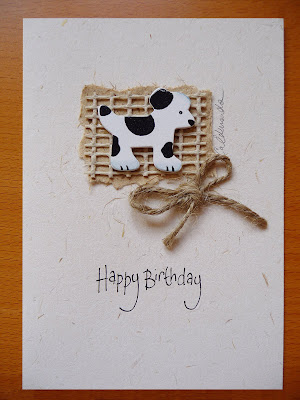

 I've just started selling them on ebay too and you can view them if you search for my user name: carolineedmonds you can do this by following these 4 steps:
Click the “Advanced Search” link located at the top of most eBay pages.
On the left side of the page, click the “By seller” link.
Enter carolineedmonds select the “Show close and exact user ID matches” option.
Click the Search button.
starfish card
puppy card
I'll gradually put more up on ebay. If you're interested and you're local and can pick them up then I sell them for £1.99 each for A6 size and £2.99 for A5 size - the offer of buy 5 and get 1 free still stands. (The £3.50 charge for the A6 ones on ebay covers my ebay, postage and PayPal fees. If I eventually post A5 ones then they will be £4.50 on ebay).
Just email me or phone with your text details and I will make one for you.
Anyway, I hope you like them - if you do, please save me as a favourite seller on ebay then you can catch up with new ones that I put on there.


Subscribe to:
Posts (Atom)
